Windows 10 & 11
Available nowPublished on the Microsoft Store. Installs and updates itself from there.
Get it on Microsoft Store Help Me Print
Manual duplex printing assistant
Your printer has no automatic duplex unit. Help Me Print splits the PDF into odd and even passes, shows you exactly how to turn the paper over, and prints the second side in the right order — so you stop guessing and stop wasting paper.
Download
Free on every platform, with every feature included.
Published on the Microsoft Store. Installs and updates itself from there.
Get it on Microsoft StoreUniversal build for Apple silicon and Intel, arriving on the Mac App Store. The listing is in review now.
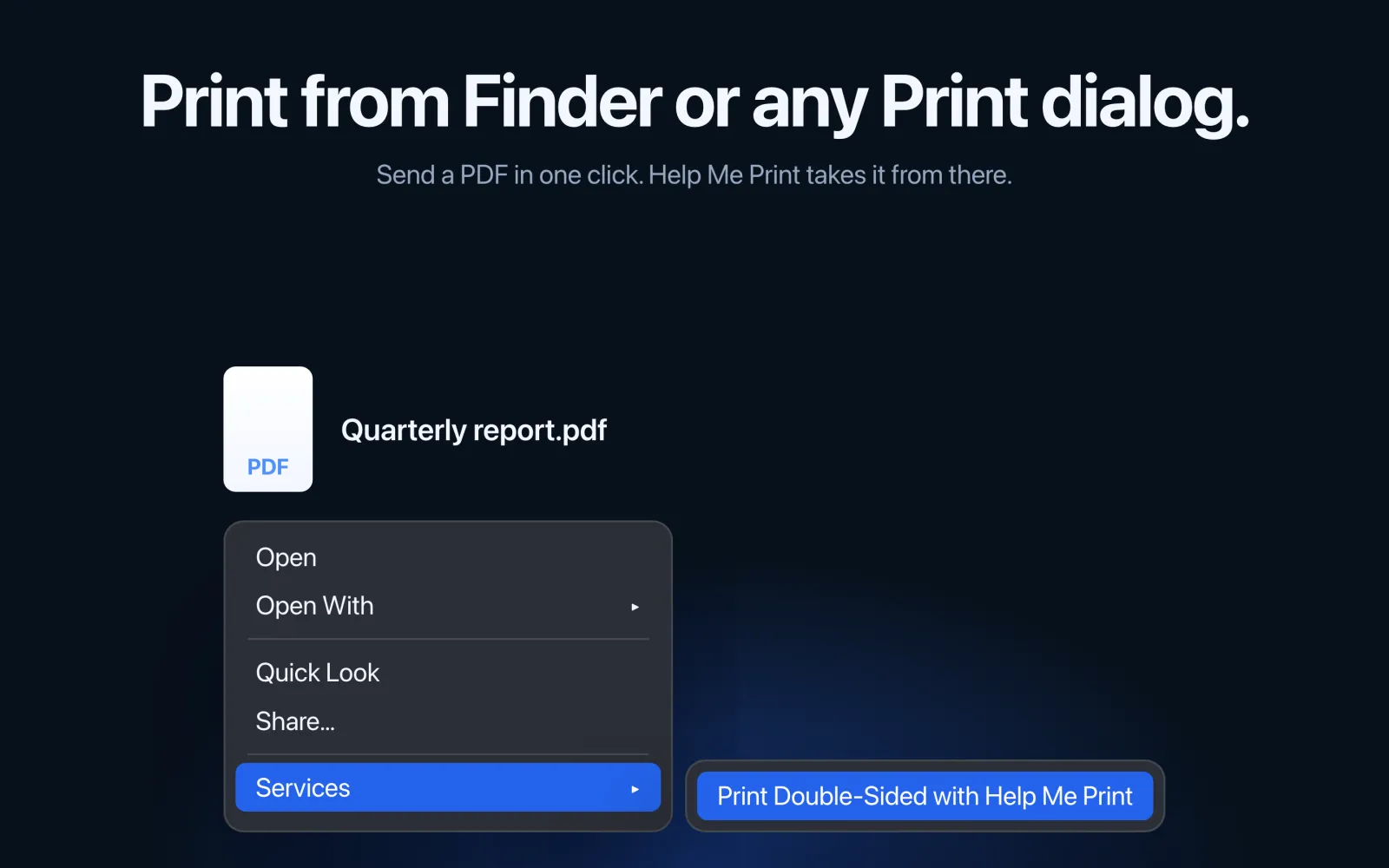
Coming to the Mac App StoreAdds a Print Double-Sided with Help Me Print entry to the system Print dialog, so any app can hand it a document.
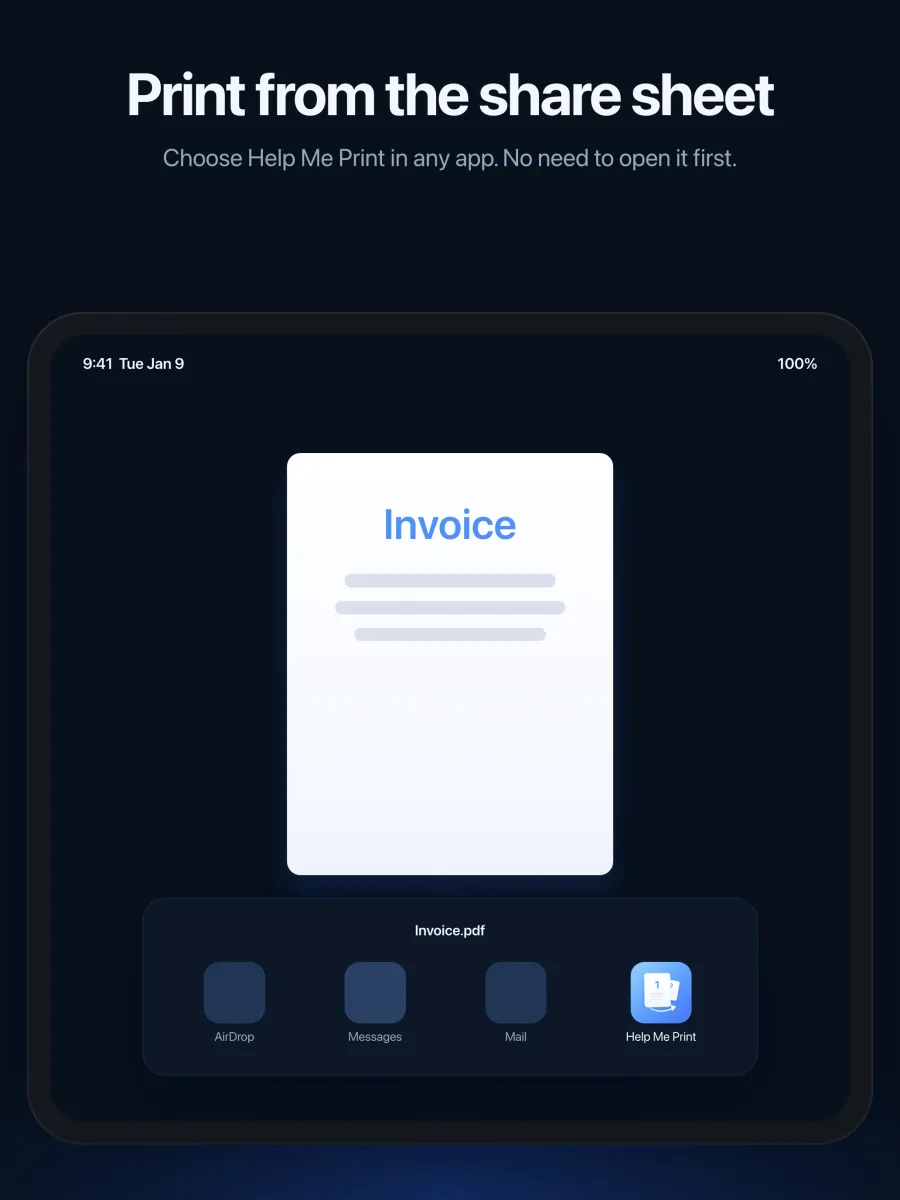
The iPadOS app is in App Store review. It prints both manual duplex passes over AirPrint, and takes a PDF from any other app through the standard share sheet.
Coming to the App StoreFree, with an optional tip jar that unlocks nothing.
The problem
Most cheap inkjet and laser printers cannot print both sides on their own. Doing it by hand means working out which pages are odd, which are even, which way the paper comes out, which way it has to go back in, and whether the second side will land upside down. Usually it takes two or three ruined stacks to find out.
Help Me Print turns that into a guided workflow. It prepares each pass, prints the odd and even pages in the right order, shows the reload direction for your printer, and keeps what it learned so the next document just works.
How it works
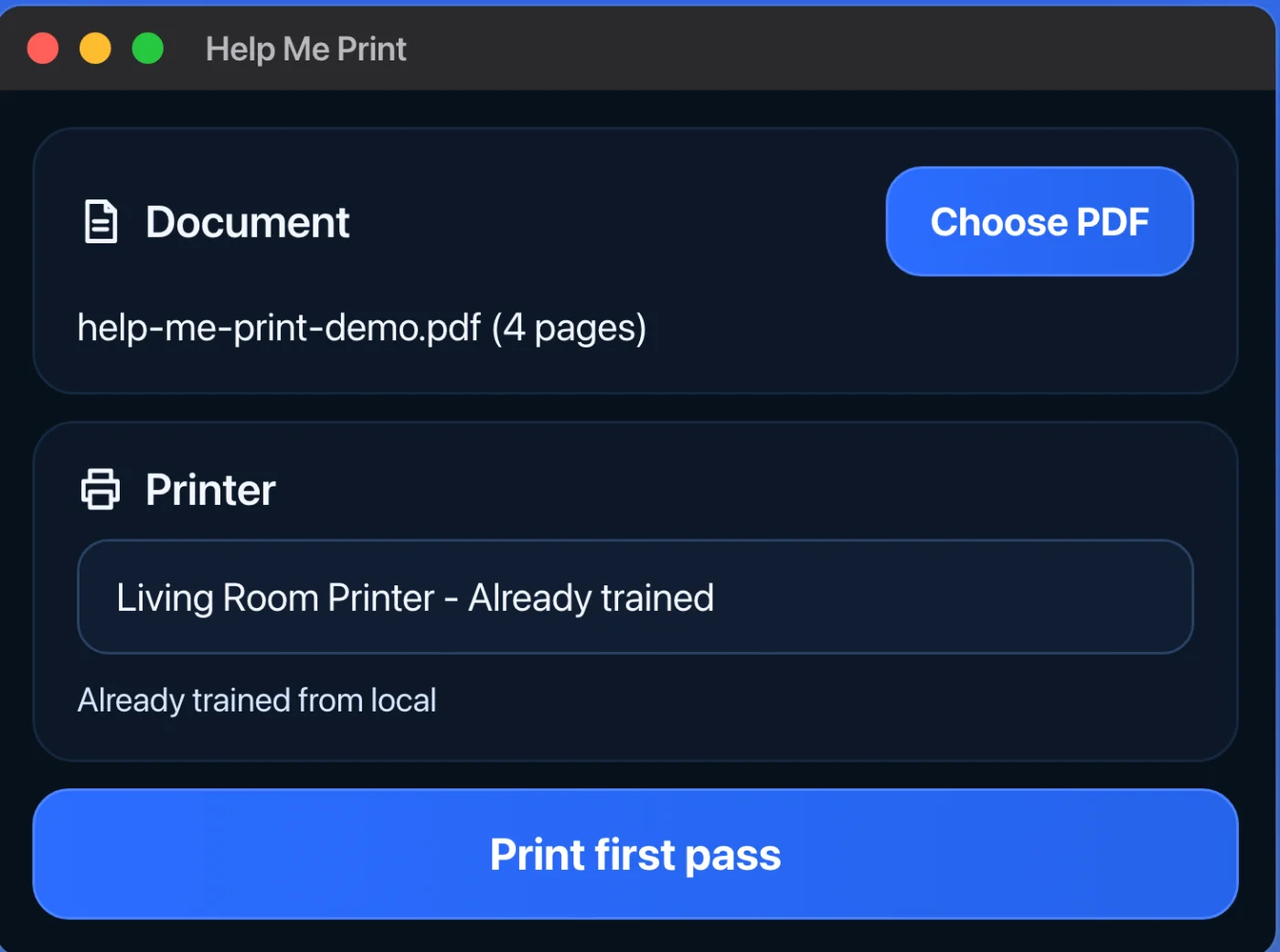
Pick a file in the app, drop it on the icon, or send it over from Finder, the system Print dialog, or the iPad share sheet.
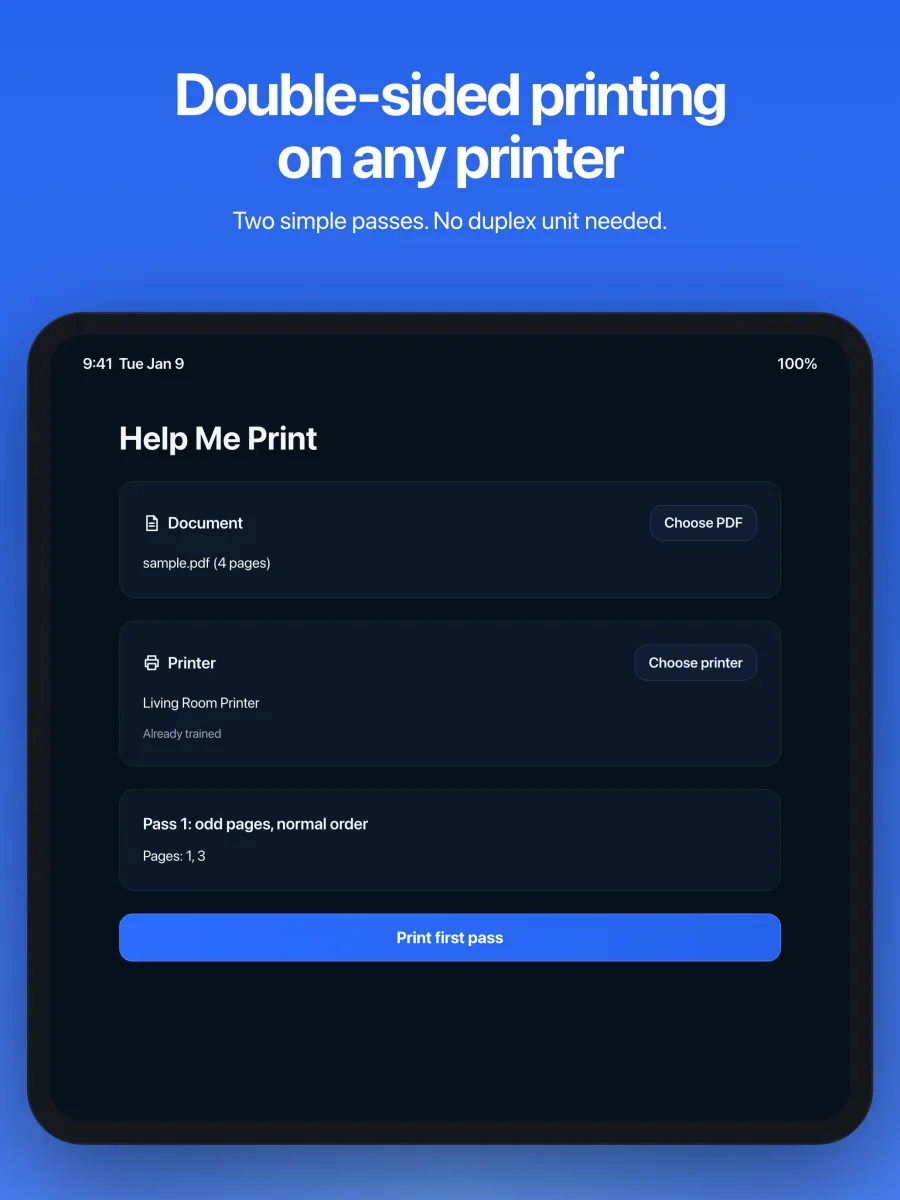
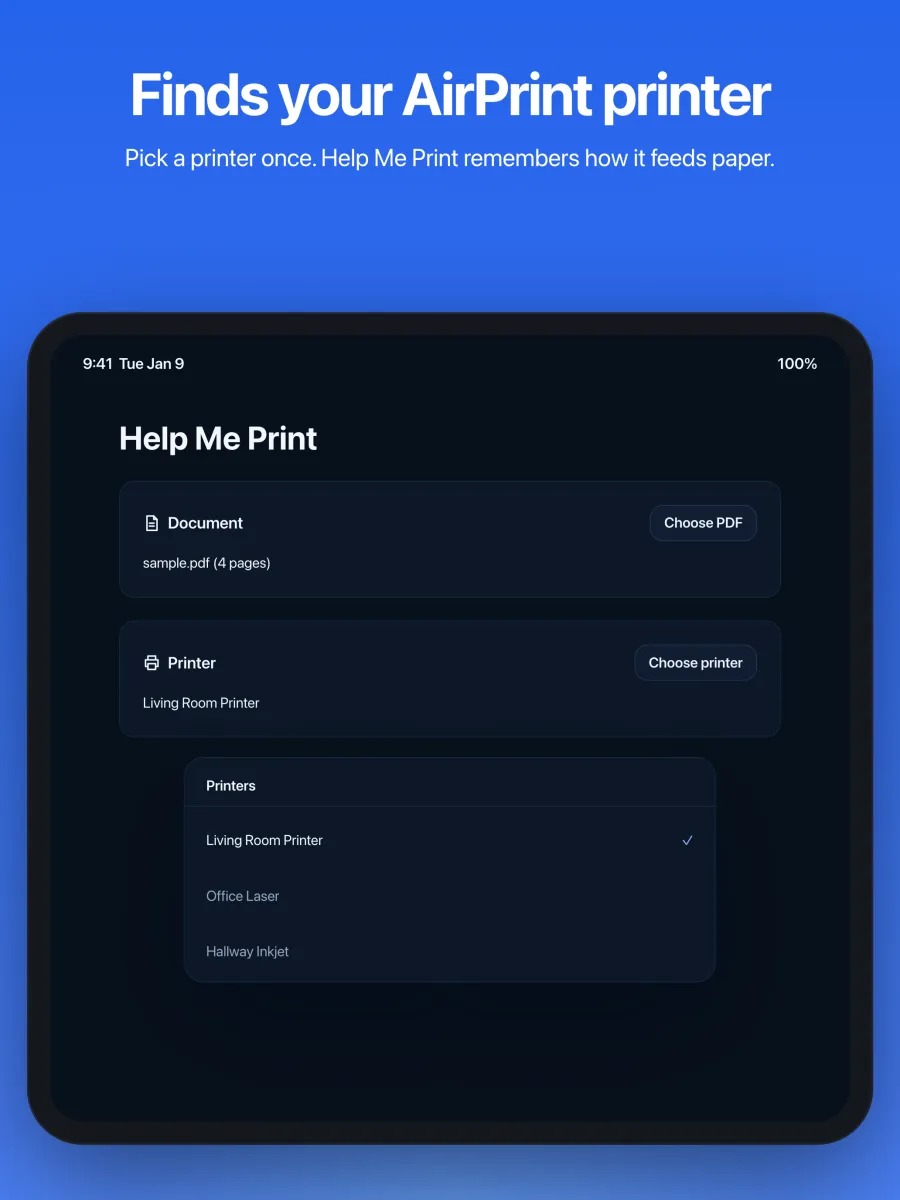
Choose your printer. The app prepares one side of every sheet and sends it.
On-screen instructions for your exact printer: which way up, which edge goes in first.
The remaining pages print on the backs, in the matching order. The document reads correctly end to end.
Features
The app works out the page order for both passes, including odd page counts, so the last sheet is not printed on twice.
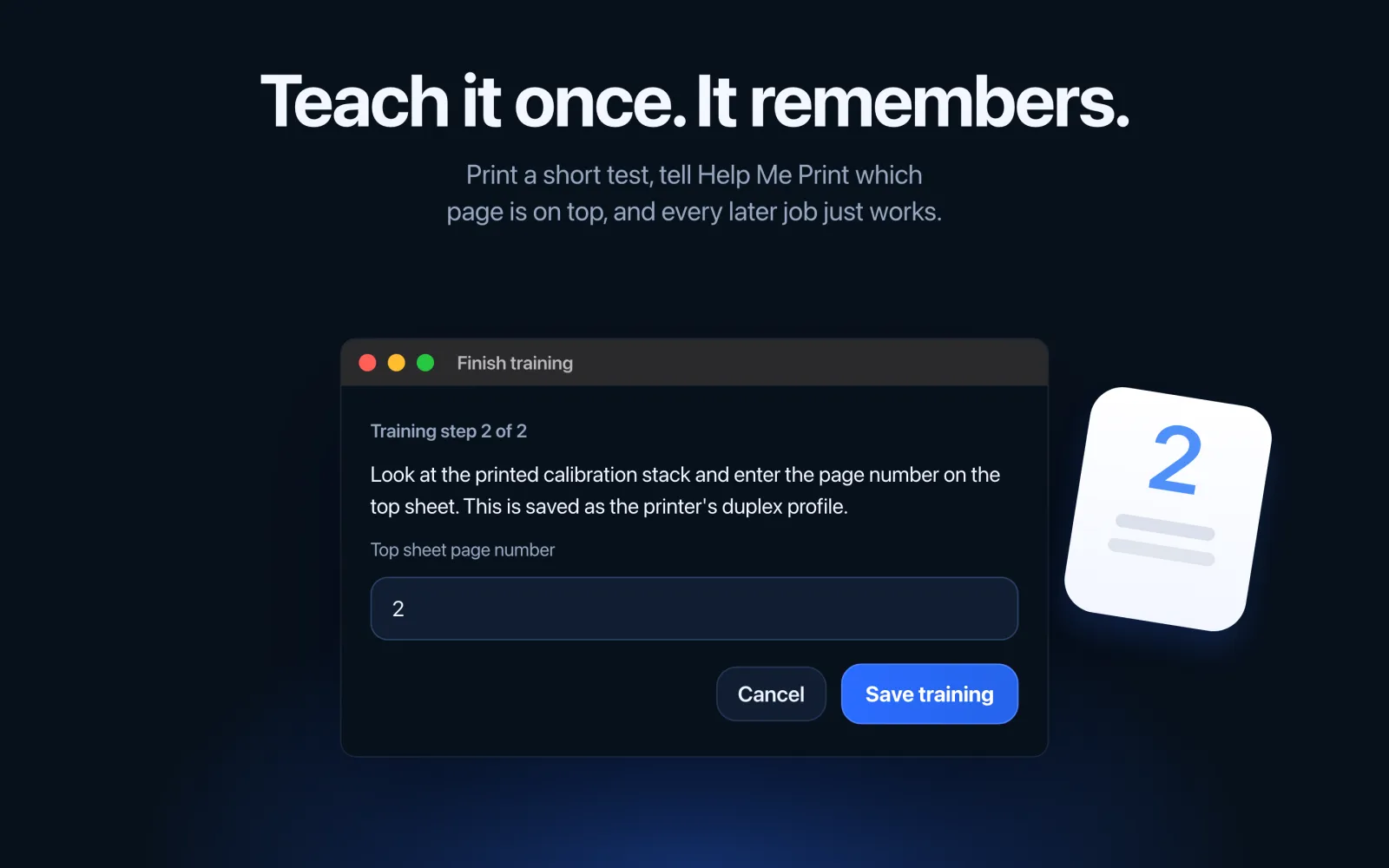
A short one-time training flow learns the output face, the reload method and the page order for a printer — instead of you burning paper to find out.
Once a printer is trained, it stays trained. Every later document skips straight to printing.
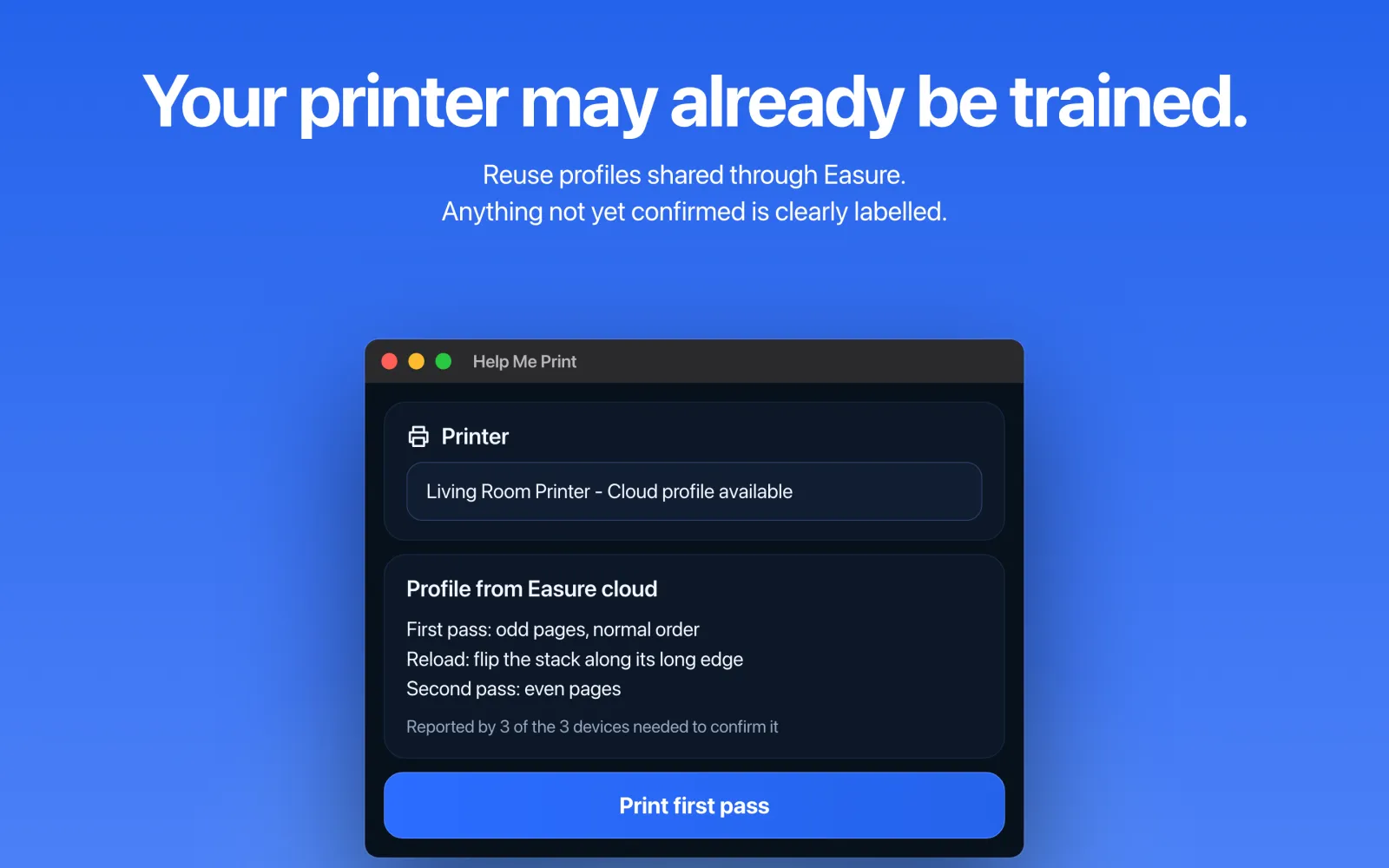
If someone already trained your printer model, that profile is offered so you can skip training entirely. Unconfirmed profiles are clearly labelled.
Finder, the macOS Print dialog, the Dock, the terminal, or the iPadOS share sheet. You do not have to open the app first.
Documents are never uploaded. The only data that can leave the device is an anonymous printer manufacturer and model, and only when you submit a profile.
Screenshots
iPad
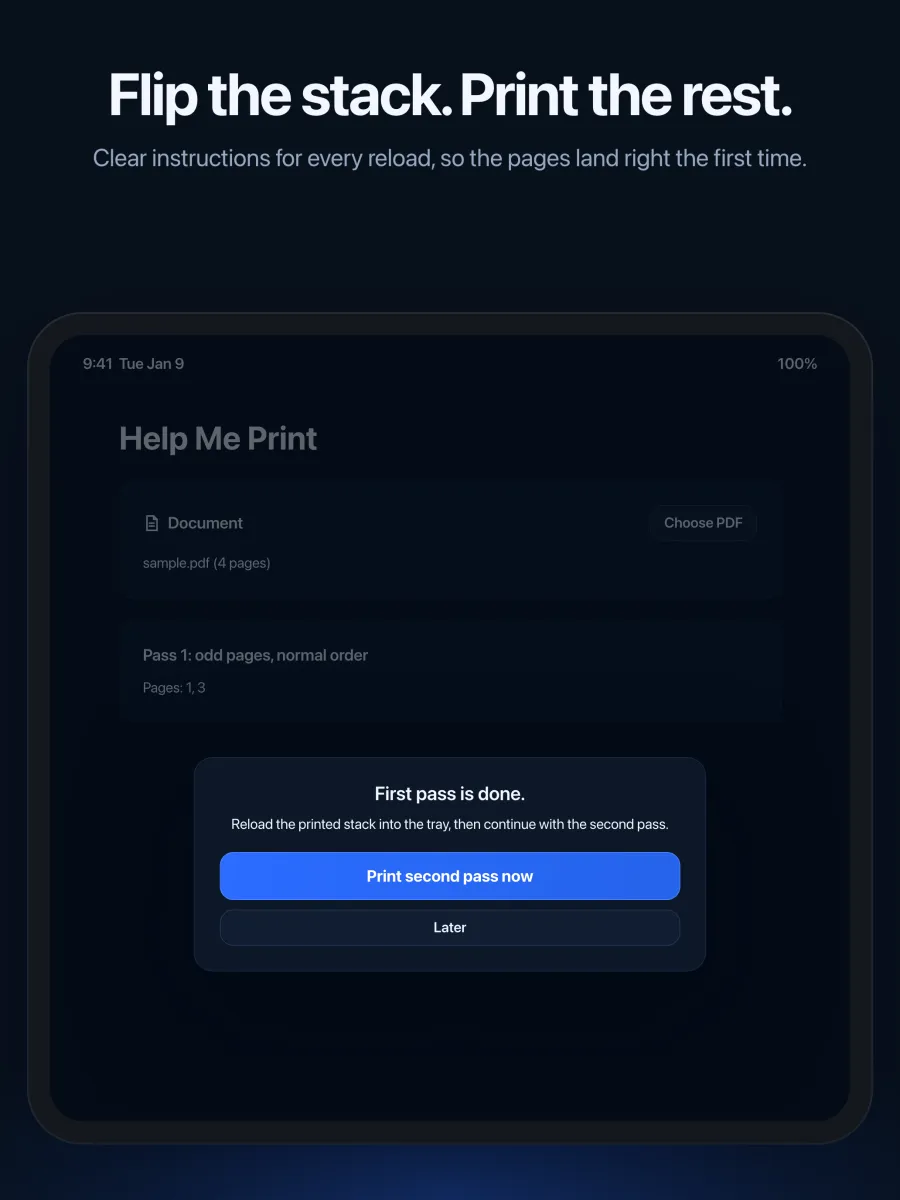
Pick a PDF, pick an AirPrint printer, train it once, print both passes. A document open in any other app can be sent over from the share sheet without opening Help Me Print first.
По-русски
Help Me Print — программа для ручной двусторонней печати PDF. Она сама делит документ на чётные и нечётные страницы, печатает первый проход, показывает, как перевернуть и заложить стопку именно в ваш принтер, и печатает второй проход в правильном порядке.
Откройте файл, выберите принтер, напечатайте первый проход, переверните бумагу по подсказке на экране и напечатайте второй. Никакого ручного ввода диапазонов страниц и подбора порядка.
Приложение само считает порядок страниц для обоих проходов, включая документы с нечётным числом страниц, и не печатает последний лист дважды.
Это не проблема. Нужен только принтер, который печатает с одной стороны — всё остальное берёт на себя Help Me Print. Подходят струйные и лазерные HP, Canon, Epson, Brother, Samsung, Xerox, Kyocera, Ricoh.
Потому что принтеры по-разному выбрасывают и забирают бумагу. Короткая калибровка один раз запоминает поведение вашего принтера, и дальше всё печатается правильно само.
Если вашу модель уже настроил кто-то другой, приложение предложит готовый профиль, и калибровку можно пропустить. Непроверенные профили помечены явно.
Все функции бесплатны, без регистрации и рекламы. Документы никуда не загружаются: наружу может уйти только производитель и модель принтера, и только если вы сами отправите профиль.
FAQ
Use manual duplex printing: print one side of every sheet first, reload the stack, then print the other side. Help Me Print prepares both passes, tells you how to reload the paper for your specific printer, and prints the second pass in the matching page order.
Double-sided printing done in two passes on a printer with no automatic duplex unit. Odd pages print first, the paper is turned over and reloaded, and even pages print on the backs of the same sheets.
Yes. Every feature is free, with no account, no sign-in and no ads. The iPad version has an optional tip jar; tips unlock nothing.
Any printer your system can already print to — inkjet or laser, HP, Canon, Epson, Brother, Samsung, Xerox, Kyocera, Ricoh and the rest. The printer only has to print single-sided pages.
No. Documents never leave your device. The only thing that can be shared is an anonymous printer profile — manufacturer, model and duplex behaviour — and only if you choose to submit one.
Because reload direction and output face differ between printers. The calibration flow learns how yours behaves once, then applies it to every job after that.
Yes. The iPad app prints both passes over AirPrint, and a PDF open in any other app can be sent to it from the standard share sheet.
Handled. A document with an odd number of pages leaves the back of the last sheet blank instead of printing page one on it.